
Search Knowledge Base by Keyword
 Our platform enables you to quickly and easily connect your data sources to SQL Server table.
This enables a one-way synchronization to occur – where any changes in the SQL table are downloaded into your data source on a regular basis.
Your data source will be automatically updated in this way until you remove the connector or an error occurs (such as losing authorization to access the database).
Before you add a SQL Connector, you must ensure that you have a valid SQL Server Connection set up on your organisation.
To Set up a SQL Connector to your Data Source by following these simple steps:
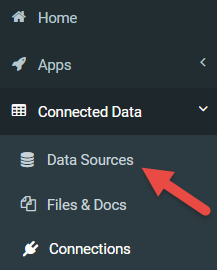
- Go to Connected Data -> Data Sources

- In the list of available data sources, hover your mouse over the listing of the data source you wish to connect.
A set of options will show, click on the settings link. -
On the Settings page, mid way down you should see a Connector heading.
- Click
- A new window with the selection of connectors to choose from.




The page should refresh with your newly added connector.

Next, configure the following:
- Table Name: The SQL Server database table from which rows will be retrieved
- Ignore Internal Columns: If enabled, this connector will ignore all columns where the column name starts with an underscore e.g. _lastupdated
If your table has a column named _identity and internal columns are not ignored, this column will always be the first column of the data source. Other internal columns are added to the end. - Refresh Frequency: The frequency that data is pulled by this connector.
When you save your changes, the connector will be fired for the first time and after that will run at the interval you specified in the connector settings.
Wait a minute or so and then check the Rows page for your data source.
If rows are not downloaded, then there may be an error with the connection to the SQL Server.
You can check this by clicking on the View Logs button shown next to your connector on the Settings page.