
Search Knowledge Base by Keyword
 Power BI is a business analytics solution that lets you visualize your data and share insights across your organization, or embed them in your app or website. Power BI allows you to connect to your data and bring your data to life with live dashboards and reports.
This document will provide some details on how to link your TaskForm app with Microsoft Power BI. This document will assume that you are already well-versed in the usage of Power BI and that you are able to make your own dashboards from connected data inputs. For details on the Power BI platform, you can consult the official Power BI documentation here – https://docs.microsoft.com/en-us/power-bi/
Requirements:
In order to make use of the PowerBI connector, you will need to ensure the following:
- You will need a PowerBI account with Microsft – https://powerbi.microsoft.com/en-us/
- You will need an App ID and App secret keys for your Power BI connector to work. You can find out how to obtain these here – https://docs.microsoft.com/en-us/power-bi/developer/register-app#register-with-the-power-bi-application-registration-tool
- Premium user accounts with TaskForm – the Power BI connector is only available to premium user accounts. Only data submitted from premium user accounts will be accessible through the Power BI dashboards.
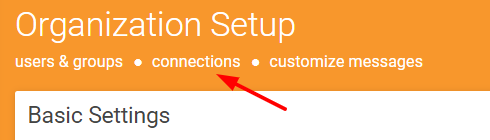
Step 1 – Add the connection to your Organization Setup (Organization & Users –> Organization Setup) to enable the easy adding of Power BI support to any of your forms. On the Organization Setup screen, click the “Connections” link as shown below:
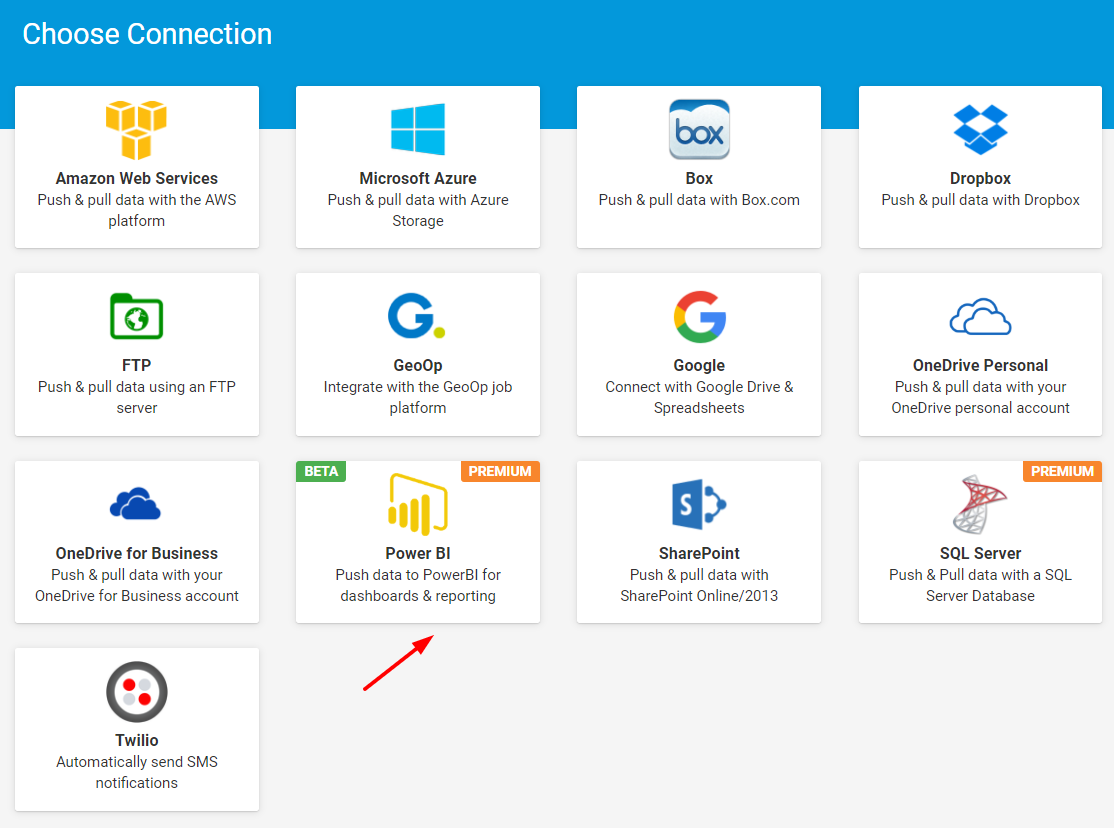
Step 2 – Click “Add Connection” in the top-right corner of the screen and select the “Power BI” connector as shown below:
Step 3 – Add your Power BI connection details which you would’ve obtained by following this guide: https://docs.microsoft.com/en-us/power-bi/developer/register-app#register-with-the-power-bi-application-registration-tool – you will need your Power BI Application ID and Application Secret to proceed.
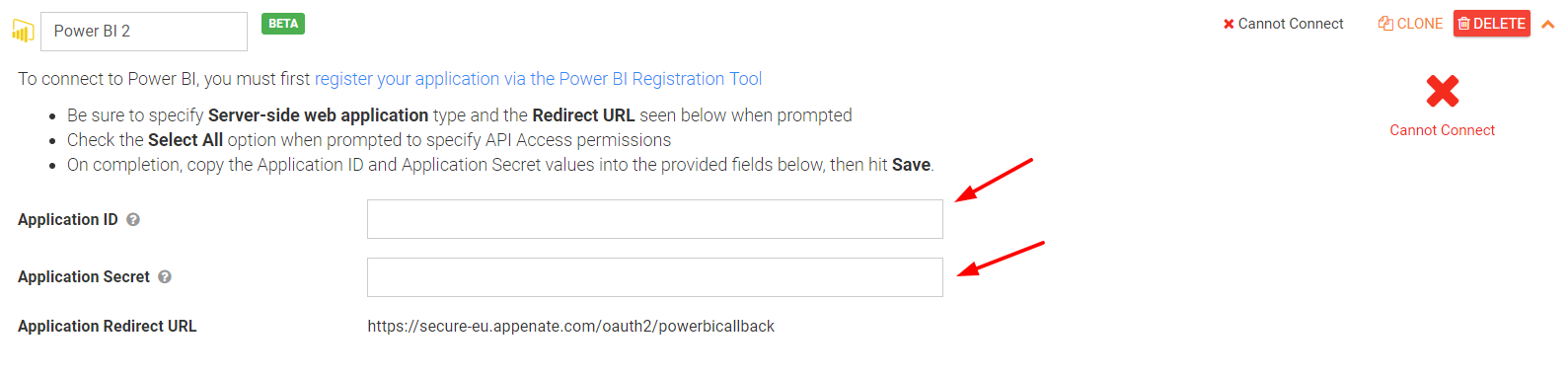
Step 4 – Confirm the connection was a success. If your Application ID and Application Secret keys are correct, then you will get a success message a shown below:

By this point, your Power BI connector has been configured at an organizational level and you can now start building forms and linking them to your Power BI dashboards.
Linking your form to Power BI
Step 1 – Create an app as demonstrated in the image below: