
Search Knowledge Base by Keyword

The Hosted GET connector lets you expose Data Source rows from your own systems, for direct access by your app.
The key advantage of the HostedGET connector is that you can control the data rows being exposed to the app, letting you filter rows down to the individual app user level as desired. For ERP, CRM and other enterprise systems this is important as the security/permissions around “who gets to see what” is critical.A secondary benefit is that your data does not need to be pushed our platform, so any data sovereignty concerns you may have are resolved by this connector.
One final benefit is that Data Sources that run off of Hosted GET connectors are not subject to the standard 50,000 row limit, since the rows are delivered directly to the device.
|
NOTE: There are still performance limits on the app side when the rows become large – this varies across Android and IOS, and also depends heavily on the device specifications. |
A rule of thumb, performance is affected by the overall file size of the data source more than the number of rows.
For example 5,000 rows containing say 100k of text data per row can be expected to run slower than 50,000 rows which have a total of 1k of data per row (e.g. columns containing say just numbers and a few short text strings).
Additionally use of “heavy” data sources in many screens that can be navigated sequentially by the user will result in a compounding performance decrease, as those big data sources can get progressively accumulated in device memory.
So with Hosted GET, you really need to test on the app to find what is the best row count and screen mix for your specific data set.
It is assumed that you have software development resources to create the web service needed by the Hosted GET connector.
If not, contact our professional services team to give you a hand 🙂
Setting Up a GET Connector
For test purposes, we recommend you use a REST API development service like – https://www.mockable.io
- Create a Data Source as normal or select an existing Data Source for use.
- On the Rows page of your Data Source, manually define and organise your Data Source’s columns to match the output of your web service.
The order of the columns must match up with what your web service returns in order for any column references to work.
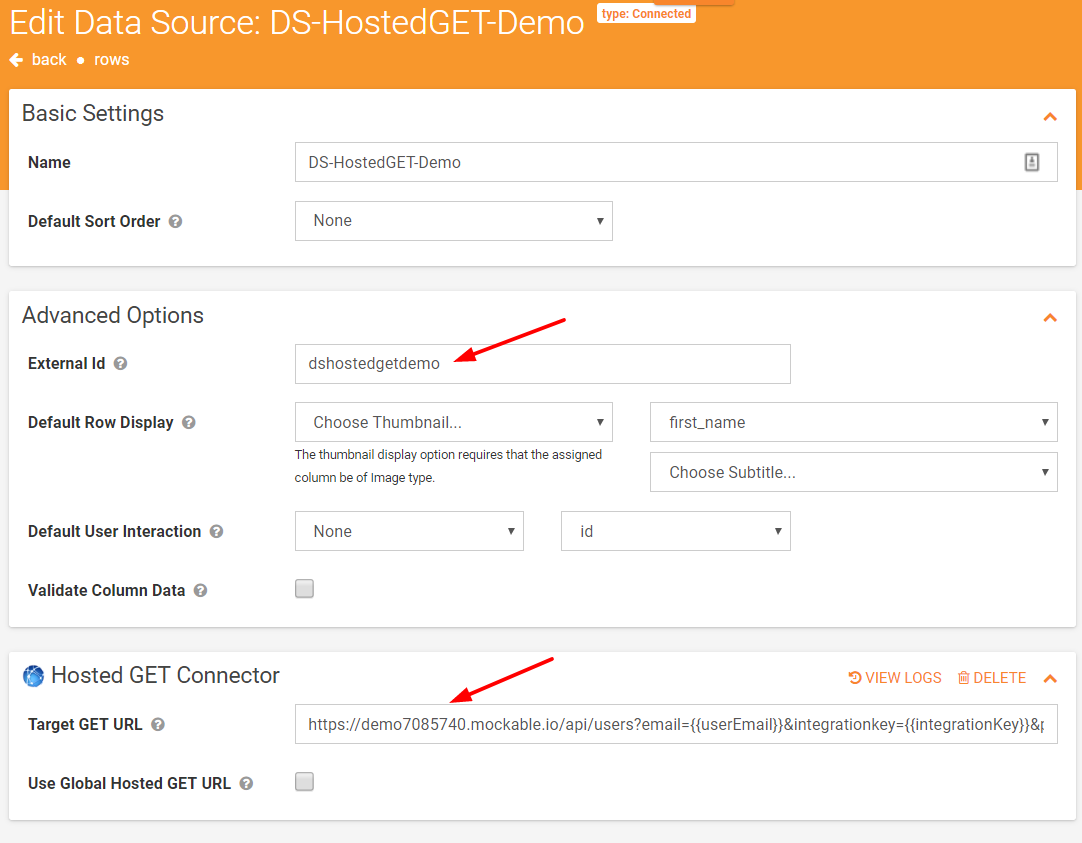
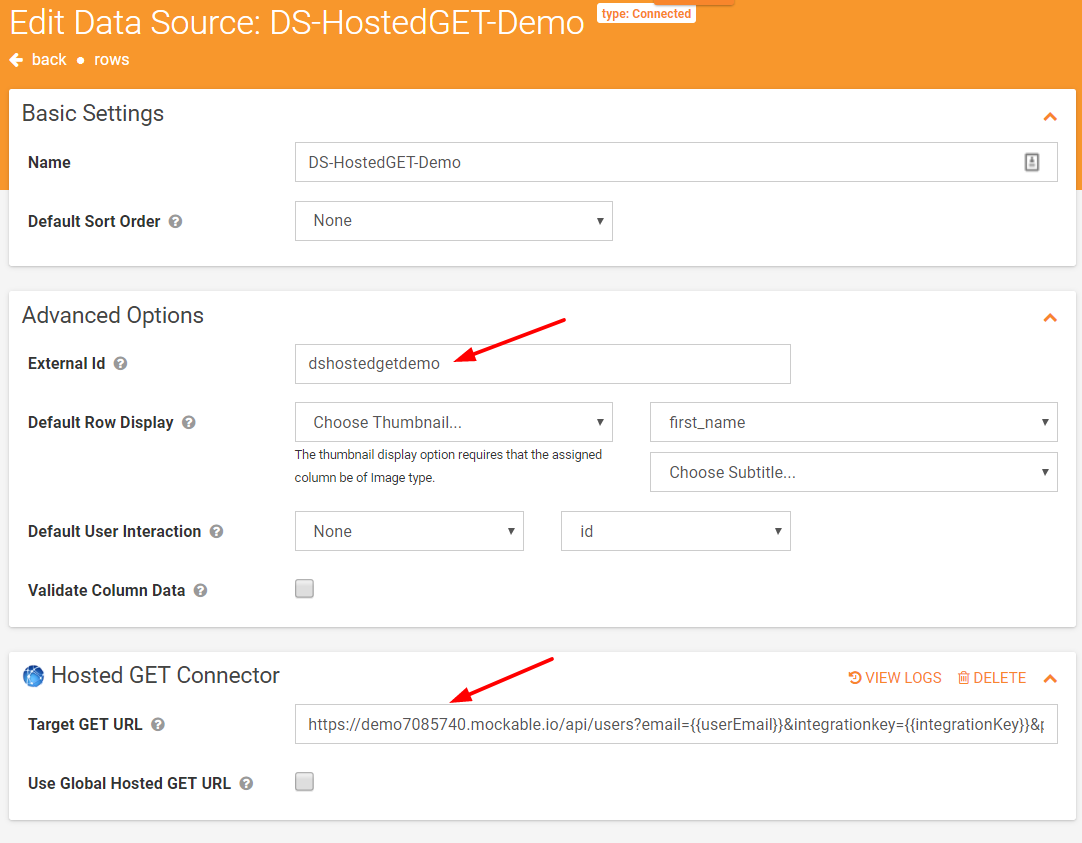
If you change column orders on your web service response at any stage, you will need to update the columns on the Rows page to match. - On the Settings page of your Data Source, make sure that you set the External Id field with some value for identifying this Data Source.
Remember this External Id value, since you will need to it for when you work through the GET web service details later in this document. -
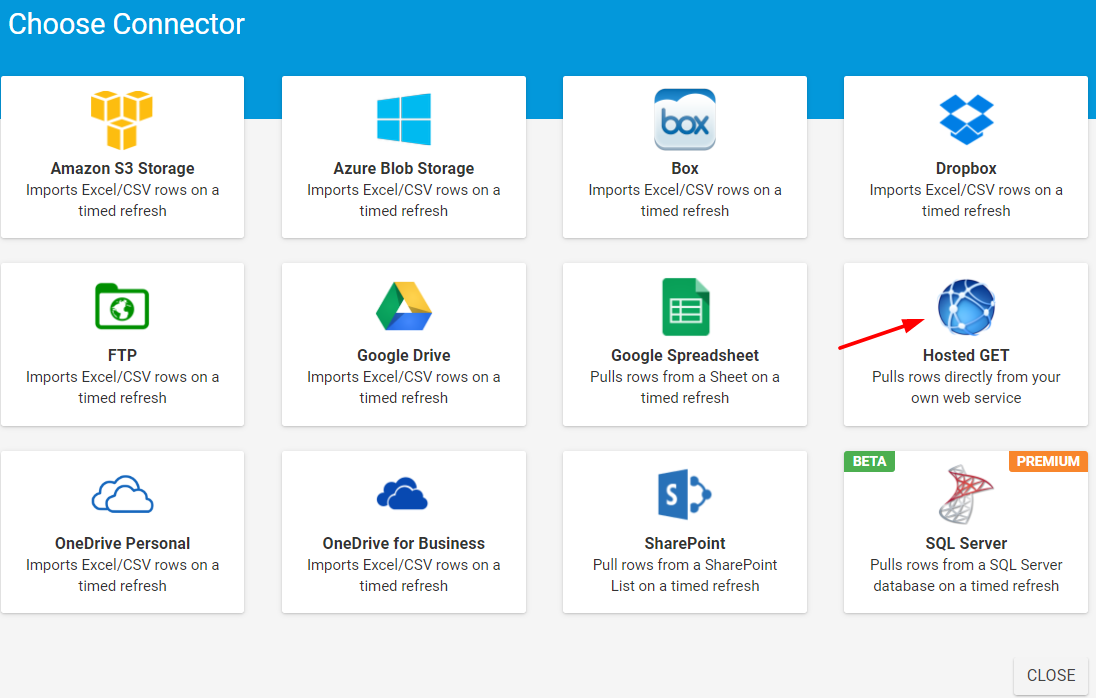
Also on the Settings page, add a Hosted GET connector via the “Add Connector” button.

Specify the web address of your web service endpoint in the provided URL field.You can also set a global DataSource GET url on your organisation and specify that the connector use it – this allows reuse of the same service endpoint across multiple Data Sources.

How The GET Connector Works
When the app discovers that a Data Source has a HostedGET connector, it performs a HTTP GET request against the target web service URL.
The GET request contains the External Ids of the Data Source’s being requested along with other identifying information.
Included in the request is your account Integration Key (useful for authenticating the request), along with the logged in app user’s email address (useful for filtering the rows based on the user’s access).
The app will issue GETs to your service whenever it attempts a data synchronisation.
Requests are issued by the app in an itemised manner – one request per Data Source.
IMPORTANT: We strongly recommend that you expose your web service endpoint as SSL secured HTTPS to ensure that app requests to your service are protected.
NOTE: Attached to the bottom of this document is a C# file that outlines the request and response structures as simple classes.
Even if you are not using C#, reviewing the properties and structure in code form can be very helpful in getting started with your own Hosted GET service.
GET Request
GET requests are issued by the app to your service, passing the values below as query string parameters.
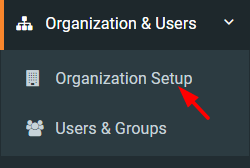
Most of the settings for the integration with your Hosted GET API can be obtained from the Organization Setup screen. This includes API Integration Key and Provider ID (Customer ID).
The parameters passed on the request are as follows:
|
Input Name |
Data Type |
Required |
Description |
|
ids |
String |
Yes |
Comma separated list of External Ids for each Data Source that the app wants to synchronise. |
|
providerId |
Integer |
Yes |
Your unique Provider Id found on your Organisation Setup page (My Account -> Organisation Setup)
|
|
integrationkey |
String |
Yes |
Your unique integration key found on your Organisation Setup page (My Account -> Organisation Setup). |
|
|
String |
Yes |
Email address of the logged in app user making the request. |
| deviceid | GUID | Yes | The unique identifier of this user’s device as registered on our platform. Useful for tracking which device the request originated from. |
| lastupdated | DateTime (YYYY-MM-DDTHH:MI:SS) |
Yes | The last time that the app checked for Data Source updates. Use this to implement incremental row updates, passing back just the new/updated and delete rows since the time the app checked in. This is recommended for large Data Sources to save server resources and prevent exhausting mobile data allocations. You can also use this value to determine whether there is anything at all to update since the last time the app pinged your service. |
| lastupdateds | String | No | Comma seperated list of DateTime values in the format “YYYY-MM-DDTHH:MI:SS” that represent the last time the app requested an update for the corresponding data source. The values are listed in the same order as the external ids in the Ids parameter. Each date in the list represents the last time that the app checked for Data Source updates for the specific data source. Use this to implement incremental row updates, passing back just the new/updated and delete rows since the time the app checked in. This is recommended for large Data Sources to save server resources and prevent exhausting mobile data allocations. You can also use these values to determine whether there is anything at all to update since the last time the app pinged your service. If nothing has changed for the related data sources, then you can simply return a response with no DataSources property defined. |

GET Response
 |
IMPORTANT: Your web service MUST return a response in the following structure. Failure to comply with this format will result in failure to download rows on your app. Your response MUST be in JSON format. |
We also support gzip and deflate compression on responses.
This is recommended for large data sets, since text data compresses very well and thus will conserve mobile data allocations and massively reduce download time.
Our support for compression is identified through the “Accept-Encoding” header being set by the app on its REST requests.
Your web service/server should encode the entire response stream using gzip or deflate, which will then be recognised by our app code.
This is usually an automatic behaviour at the web server level, though you should check that your server configuration has enabled compression for JSON content.
In terms of how to apply response encoding, this is beyond our support scope – you’ll need to confirm this with your software developers.
If you are using Microsoft IIS as your web server, then this article may help in terms of checking your compression settings.
This service may also help with identifying if your server response is indeed being compressed.
Rows Response (<DRowsResponse>)
|
Input Name |
Data Type |
Required |
Description |
|
DataSources |
Collection of DataSource |
No |
Collection containing the DataSources that have been requested. If nothing has changed since the LastUpdated received from the app request, then you can simply return a response with no DataSources property defined or, if returning multiple data sources, then no Rows, NewRows and DeletedRows properties set on those you do not wish to update. |