
Search Knowledge Base by Keyword
You can either upload a CSV formatted file or an Excel document or else you can manually add items using the Add Row link.
Upload an Excel document or CSV formatted file
You can have up to 50 columns and 50,000 rows, though once you go over 100 rows you must use the CSV upload option or load via the integration API.
Every row in your Data Source must meet two key requirements:
- The first column must contain unique values since this will be used as the key/identifier for the row.
- The second column must contain a value and will default to being the displayable label text for each row.
If you upload a CSV file, make sure that the file has the first row of your CSV file is a header row containing your column names.
- Click on the IMPORT button

- Next Click or drag a file onto the upload area to start the upload
- Click the Save button
- The page will now display your data source in rows and columns on the page.



Edit Rows
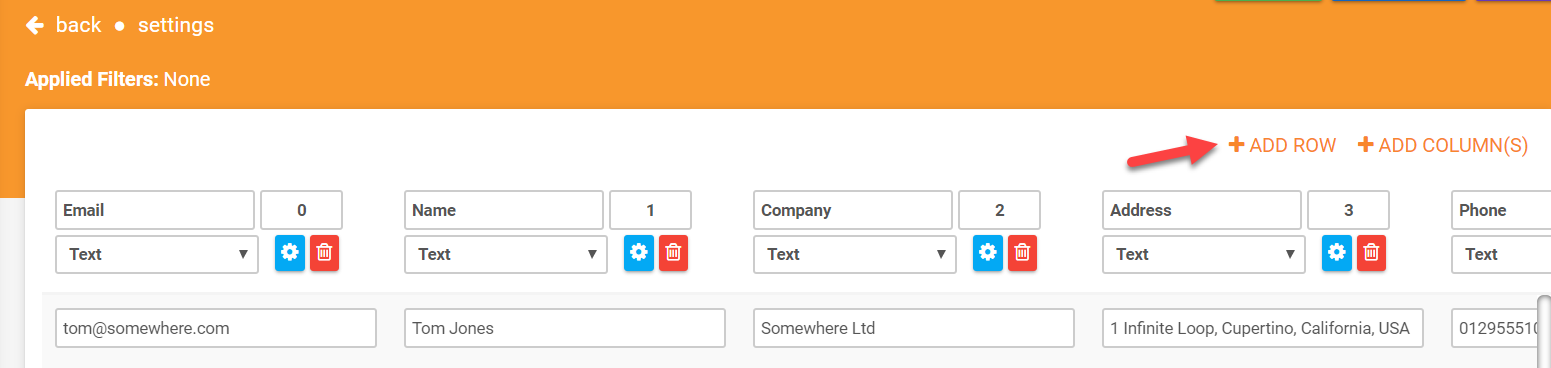
- You can manually add items using the Add Row link which you will find at the top of your datasource table.
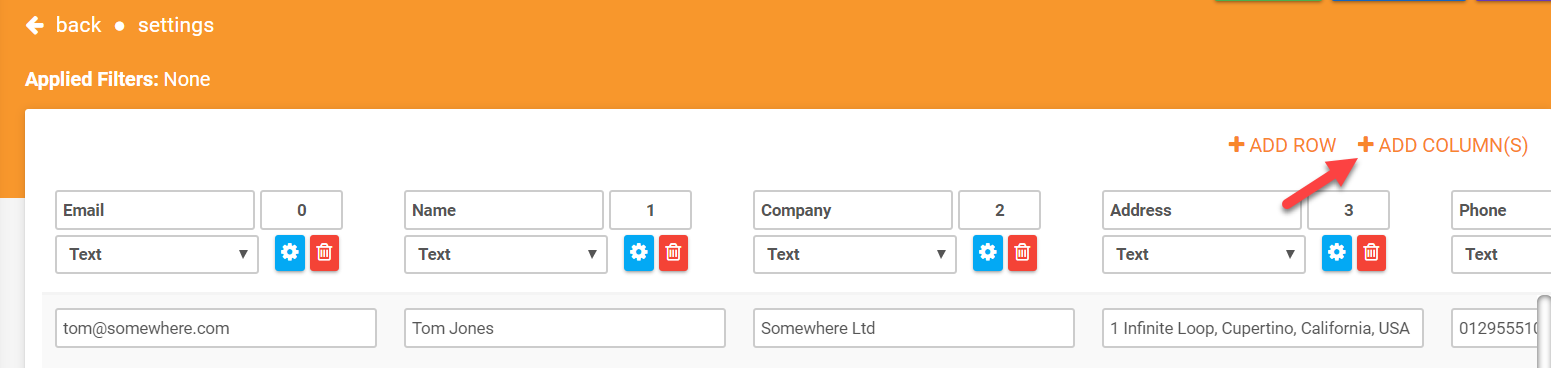
- Add columns by clicking on the Add Columns(s) link which you’ll find at the top of your datasource table.
- Fill in the fields, ensuring that the first column contains a unique value and that the second columns contains a value. To save click on the “Click to upload” button.
- Once you’ve added your rows, hit the Save button to save your changes.

Edit Settings
Data Sources have some detailed configuration options that can be changed to your requirements.
This is done via the Settings page, which is reached by rolling over the rows in the List page and clicking the “details” option.
Looking around the Edit page, on the left you will see the same fields from the Add New screen.
These fields work the same way as in the Add New screen.
You will also see options that let you change the default row display of the Data Source in the app.
You can choose which column should be used as the primary Title text, as well as assign columns to be used as subtitle text and even a thumbnail image.
To use the thumbnail image, you must specify a column that is of type Image (you set this in the Rows page).
On the right you will see a Delete button that is only available for Data Sources that have not yet been linked to any Screens.
Once a Data Source is linked to a Form you cannot delete it.
Connectors for Data Sources are also available from the Settings page.
Use connectors to pull data into the platform from external sources such as a Google Spreadsheet or FTP file dump.