
Search Knowledge Base by Keyword
GeoOp is a 3rd Party, easy-to-use job tracking software systems that make running your field sales or service business simpler and more efficient.
This doc will not be a detailed account of how to utilise the GeoOp service, rather it will show you what information you will need to source from your GeoOp account in order to get this integration to work properly.
Once you’ve created your form and you wish to link it with GeoOp, do the usual steps to add a form connector:
-
Login to the TaskForm website and select the form you wish to add the GeoOp connector to.
-
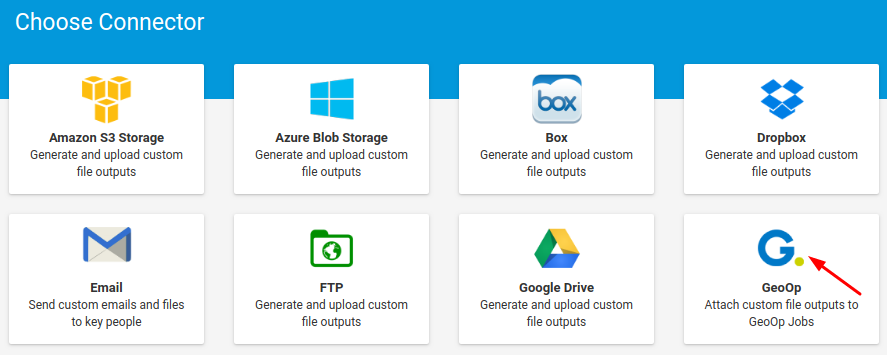
Select the GeoOp connector as shown below:
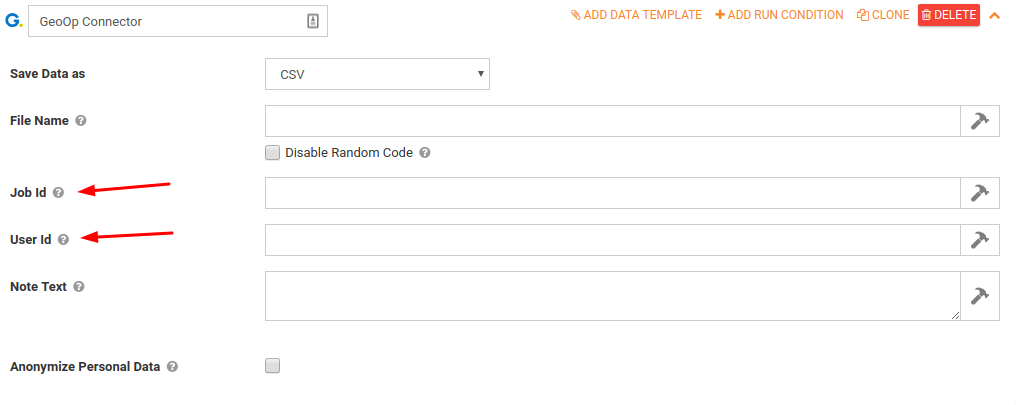
As with all 3rd party connectors, you will require details from the 3rd party provider (GeoOp in this case), that can only be obtained once you have an account with the 3rd party provider. In this instance, you will need the Job ID and the User ID from GeoOp to get the connector to work.
You will need to create an account on GeoOp if you have not done so already. You can signup for the service at this web address: https://geoworkforcesolutions.com/
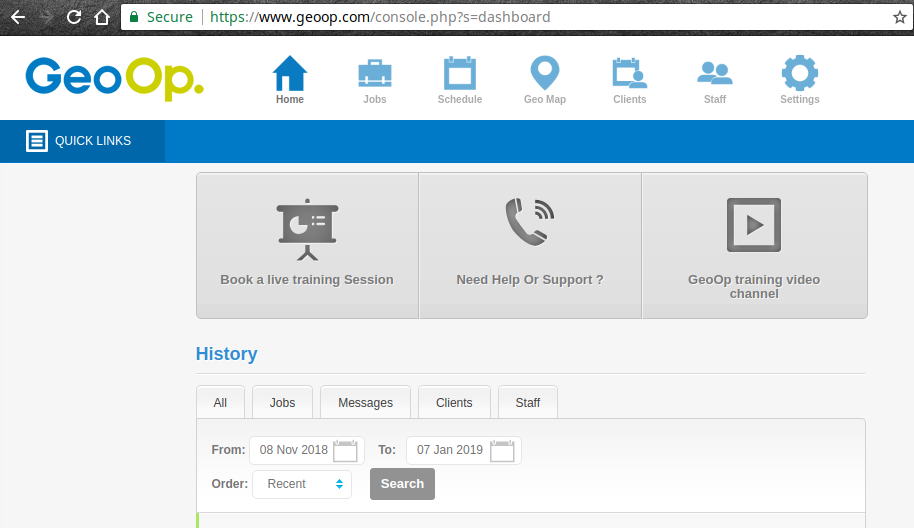
Once you’re signed up and logged in, you’ll be at the dashboard screen:
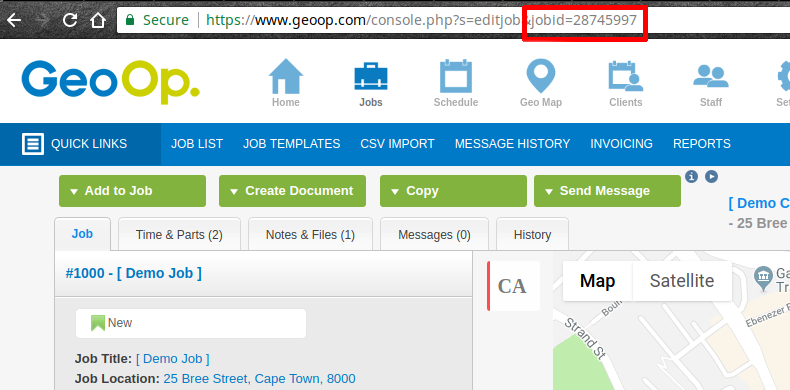
Create a job in GeoOp, to which you will be connecting and communicating. Once your job is created on GeoOp, you will need to get the JobID. You do that as follows:
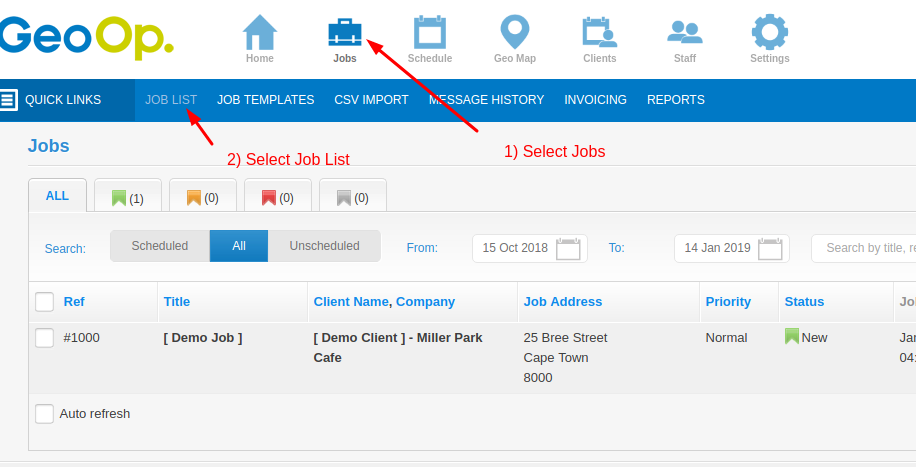
Select the job you wish to connect to from the job list.
You can now get the JobID from the URL as shown below:
To get the UserID for the user you wish to interface with on the GeoOp platform, do the following:
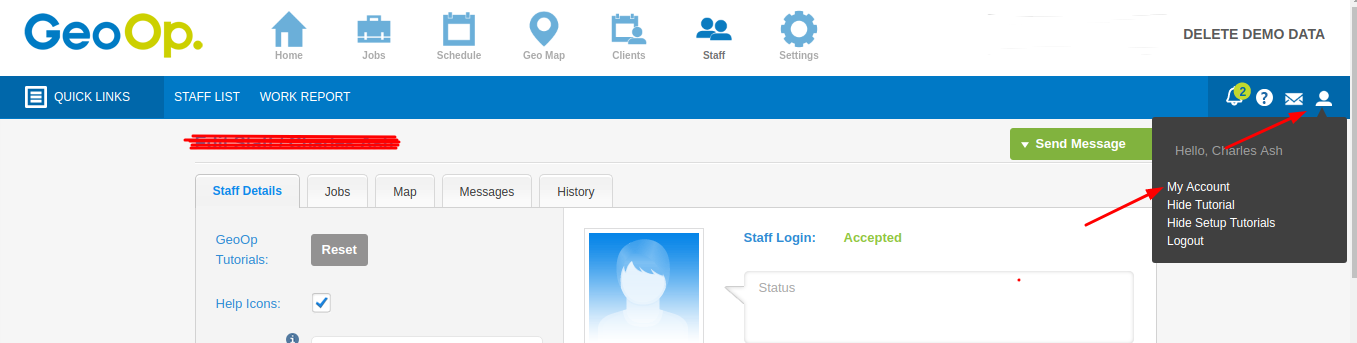
When your account page loads, you can get the userID of the logged in GeoOp user from the URL as shown below:

For any GeoOp-specific functionality, consult the GeoOp support documentation at this address: http://support.geoop.com/